Recommended QA - from bulk text typed(or copied or upload), generate some recommedded FAQ and add it into Q&A database.
Analytics – dashboards for load, sessions by agent/category, usage details.
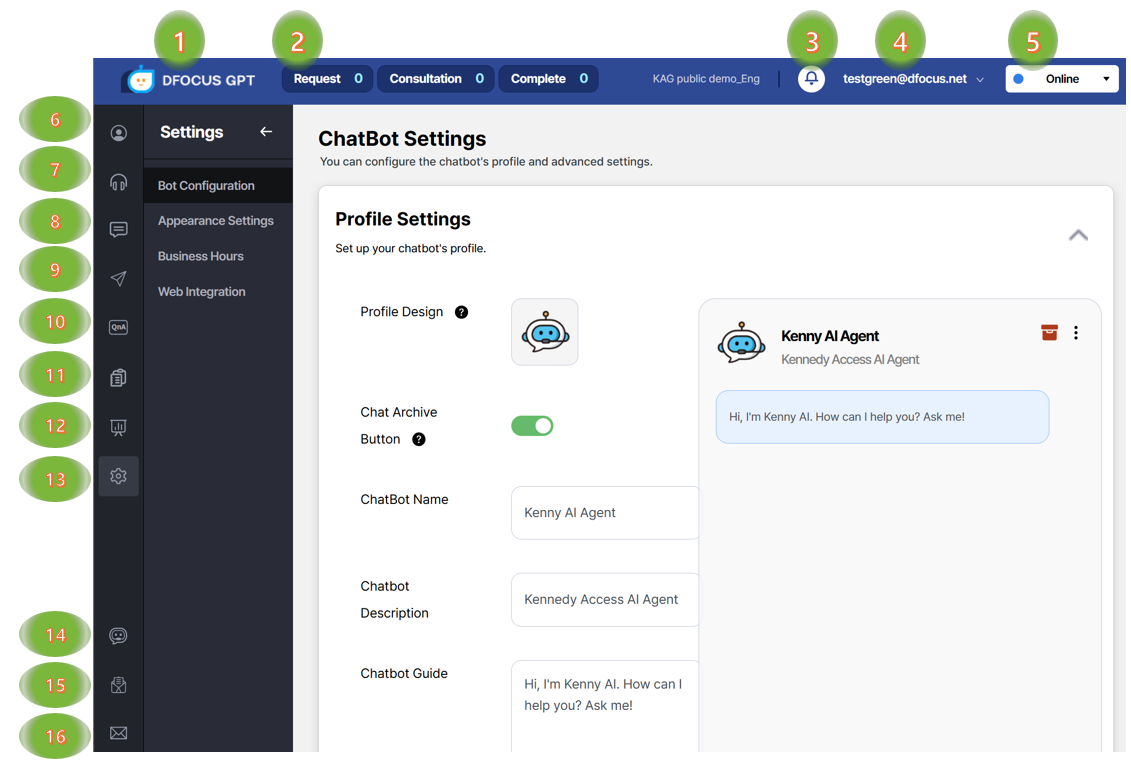
Settings – default phrases, working hours, and embed scripts.
Chatbot testing – test performance after entering knowledge.
Inquiries – view your submitted requests.
Contact – submit quick questions while using the system.
Intuitive admin UI
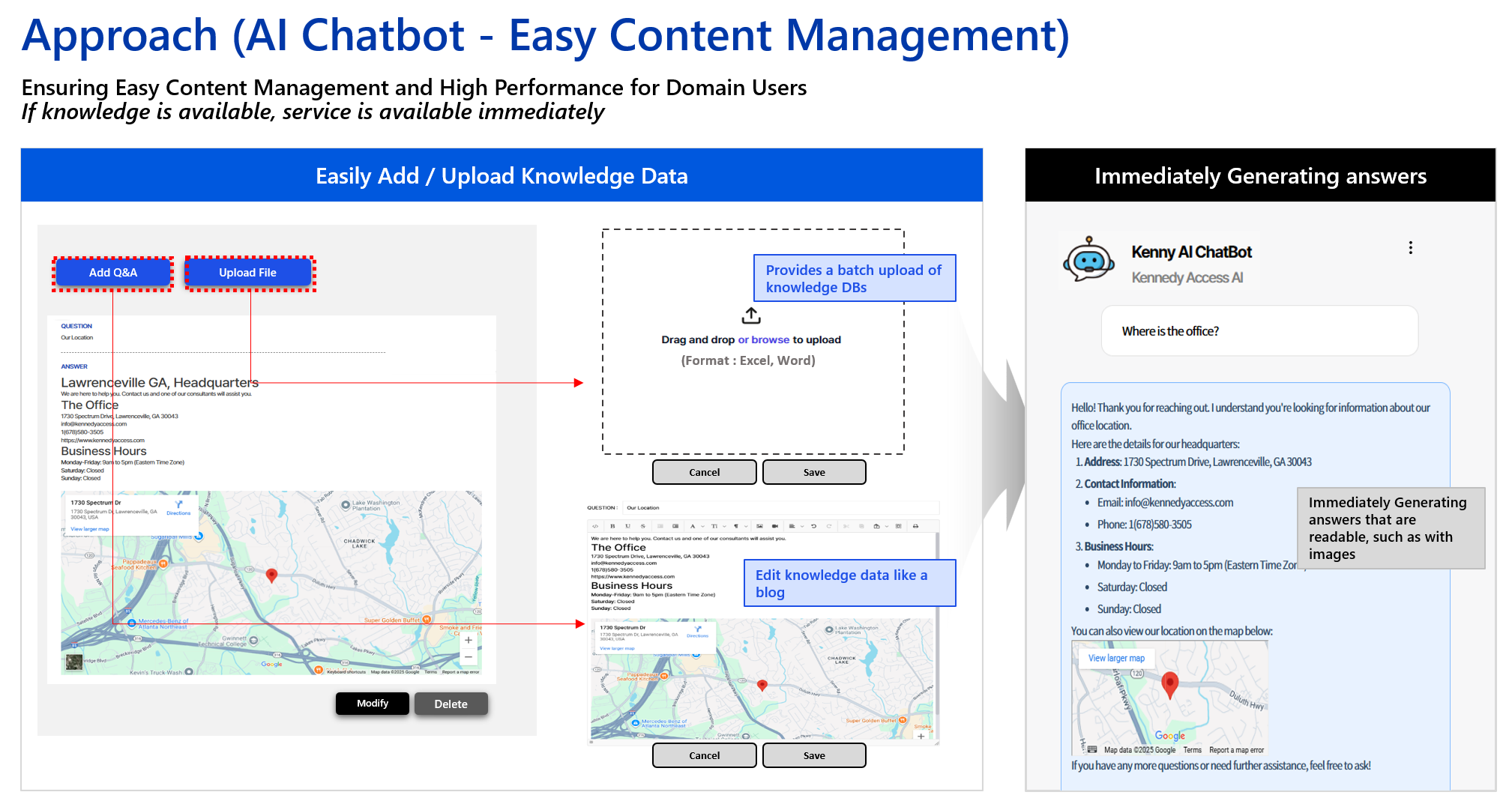
Bulk upload searchable Word documents with images; edit entries easily.
Build a dedicated “manual‑style” chatbot window that renders images nicely.
2 - Chatbot Testing
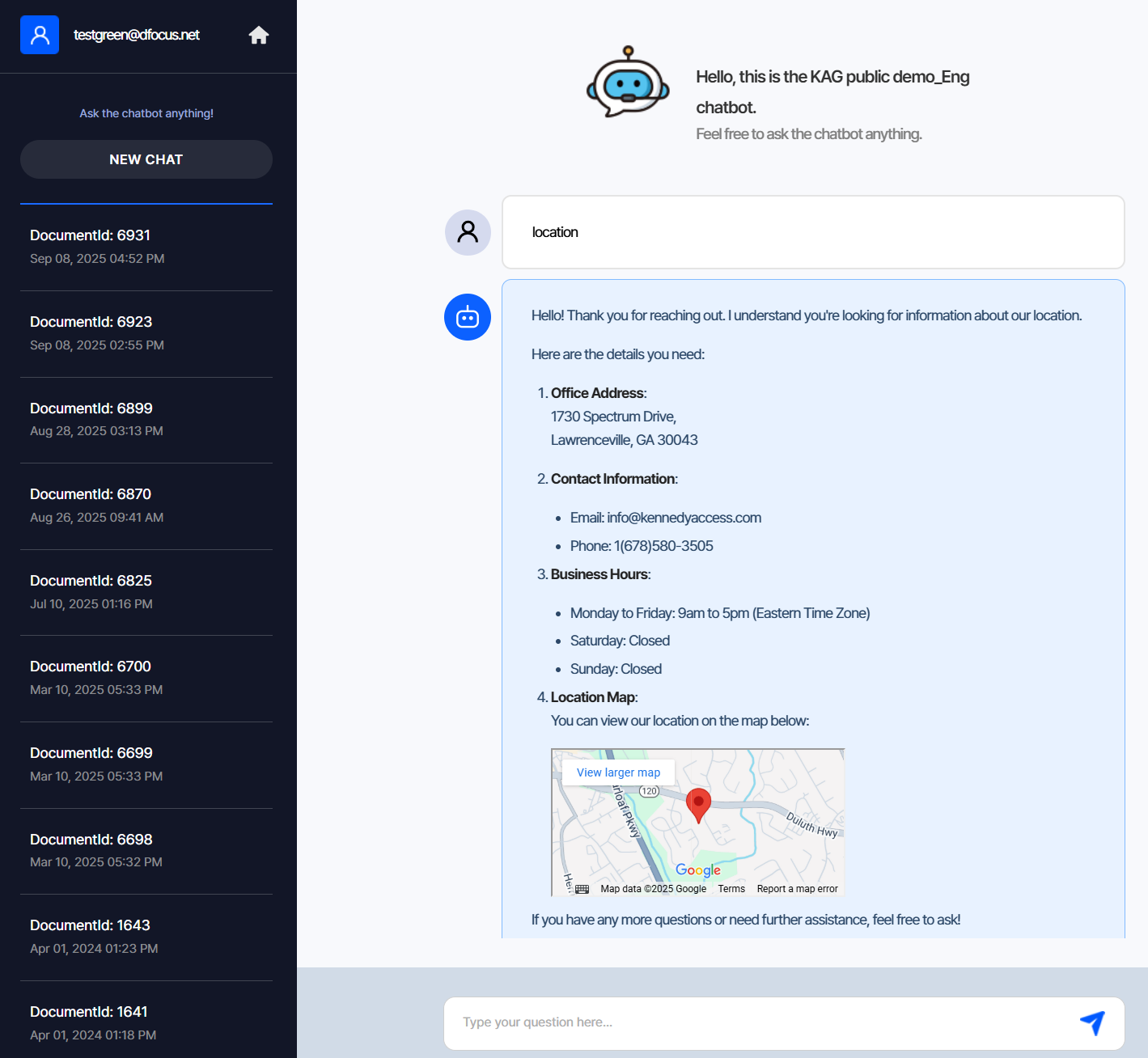
After entering Q&A data, test answer quality via chat.
After organizing knowledge, test the chatbot with various questions.
Left panel shows “New chat” and chat history.
Type your question and press Enter or click the paper‑plane icon to start.
Q&A is saved to history automatically.
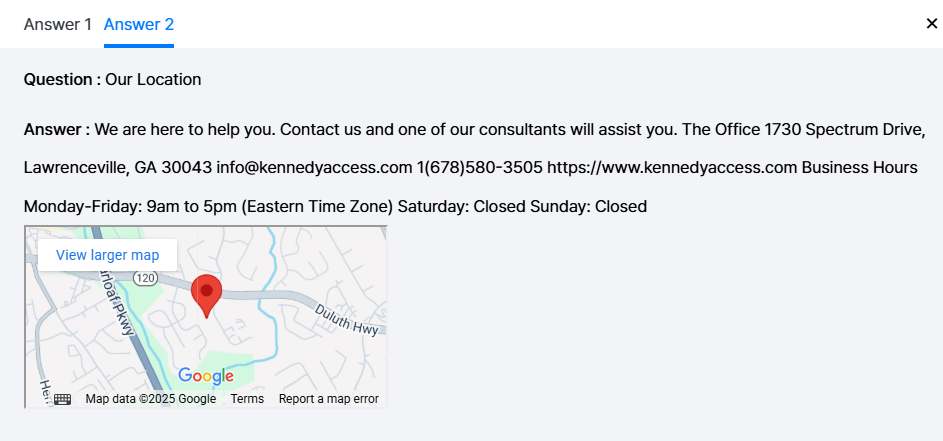
Click “More info” under an answer to see the sources referenced by the chatbot.
3 - Q&A Management
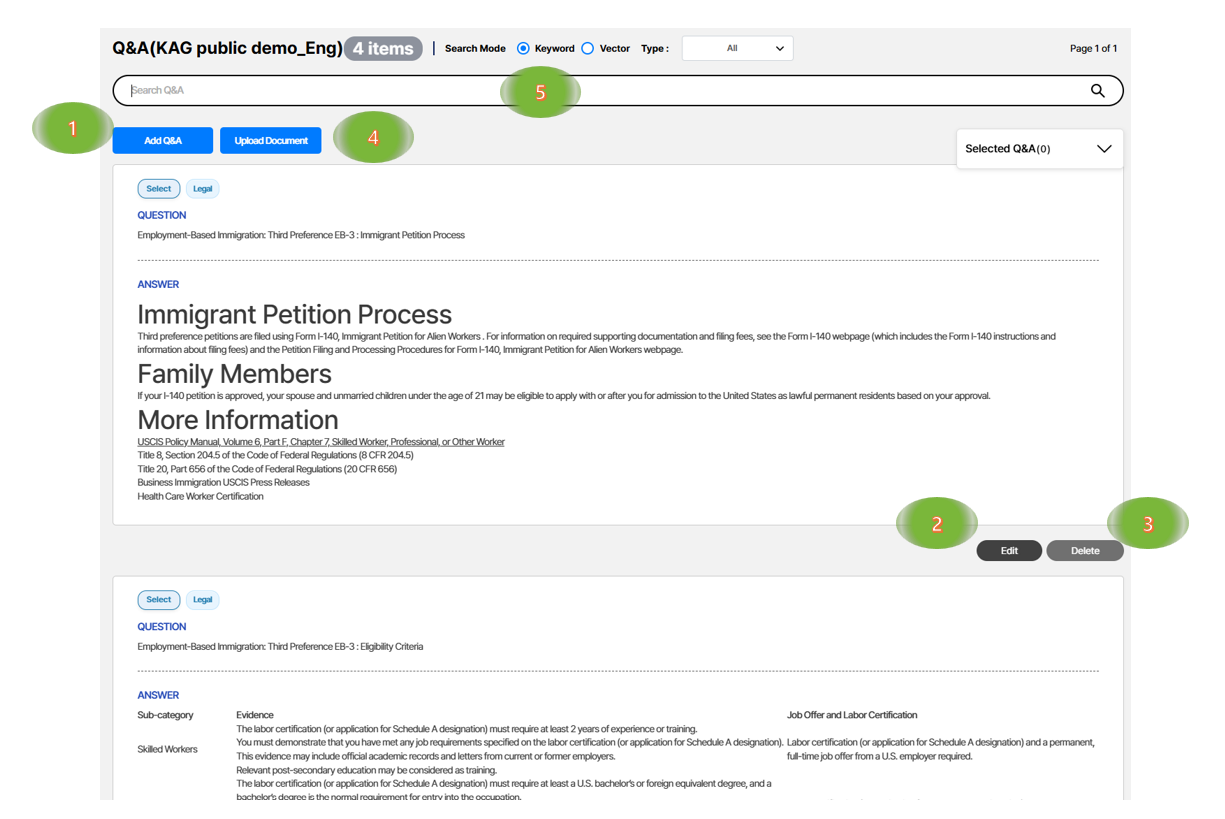
Manage question–answer pairs used for RAG search.
Manage frequently asked questions and their answers.
Add – create an FAQ.
Edit – modify an FAQ.
Delete – remove an FAQ.
Upload documents – see Bulk Upload.
Search – keyword/Semantic matching.
Intuitive and convenient Q&A management
Bulk upload and edit Word documents with images.
Generate readable answers like “manuals with images”.
Streaming answers minimize perceived latency.
4 - Agent Console
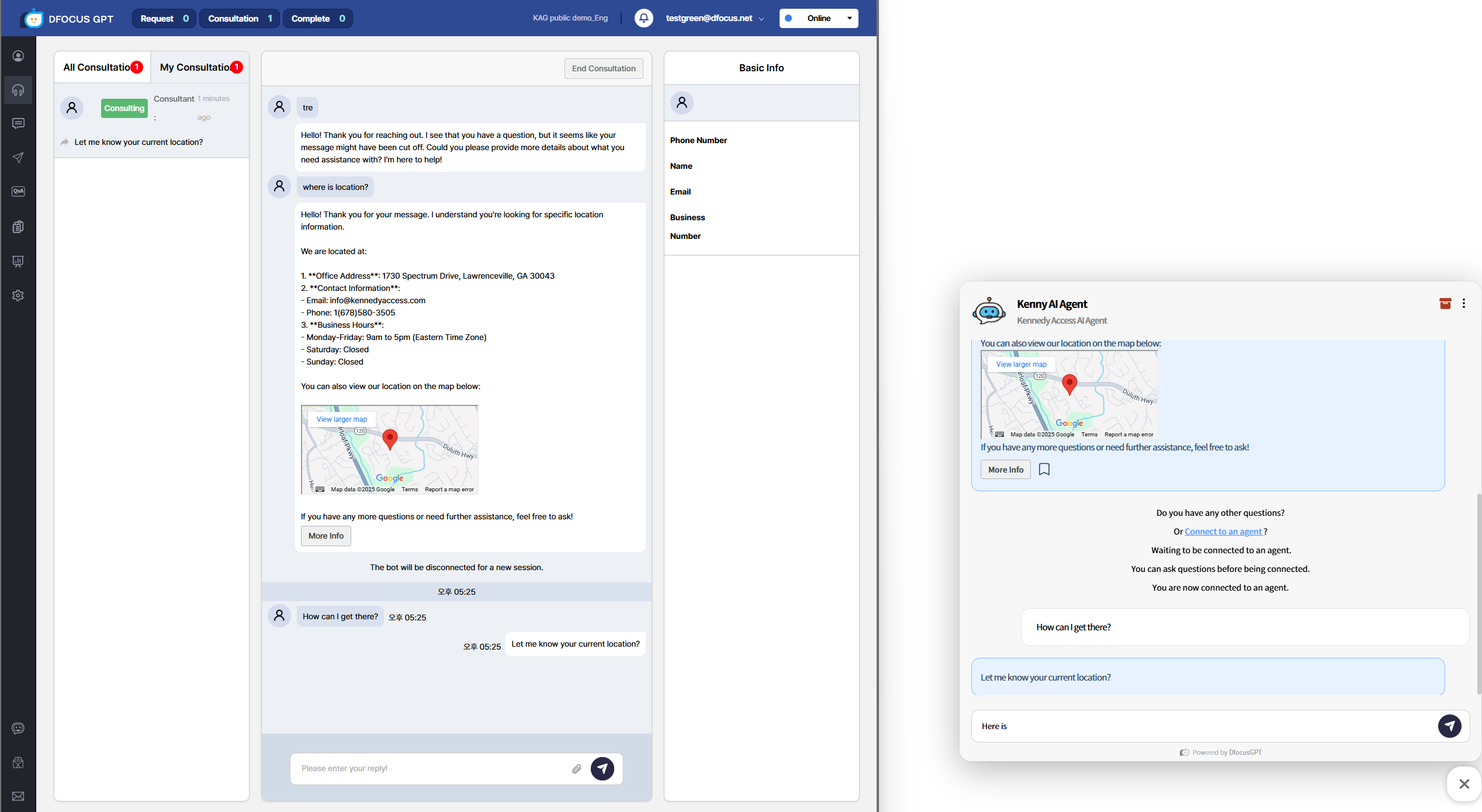
Agents respond to “Connect to agent” requests here.
When a user requests agent handoff, an agent connects automatically or manually and continues the chat.
The user selects “Connect to agent”.
The agent starts the session from the waiting list.
The middle panel shows the prior user–bot conversation.
The user sees “Agent connected”.
The agent chats with the user.
sequenceDiagram
    autonumber
    loop History
    User->>Chatbot: Question
    Chatbot->>Company KB: Search
    Company KB->>Chatbot: Results
    loop LLM
    Chatbot->>LLM: Prompt (Q + KB + History)
    LLM->>Chatbot: Answer
    end
    Chatbot->>User: LLM answer + sources
    Note right of Chatbot: Store Q&A
    end
    User->>Chatbot: Request agent handoff
    Chatbot->>User: Ask phone/name
    User->>Chatbot: Provide phone/name
    Chatbot->>Agent: Waiting for connection
    Agent->>Chatbot: Start
    Chatbot->>Agent: Provide chat history
    Agent->>User: Chat or phone
    Note right of Chatbot: Store Q&A
Video demo (Korean):
5 - Bulk Upload
Upload Excel and Word files in bulk.
Bulk uploads must follow the required formats.
Excel files must be Question/Answer pairs (Q in the first column, A in the second).
Word files also follow Q/A pairs. See the Word section.
After preparing the file, click “Upload Document” and select your file.
5.1 - Excel File
Excel format for bulk upload.
Follow the template below.
Excel template
Save an Excel file in the following format and upload it to import Q&A entries. The first row is a header and is ignored.
Question
Answer
Q1
A1
Q2
A2
Q3
A3
5.2 - Word File
Word format for bulk upload.
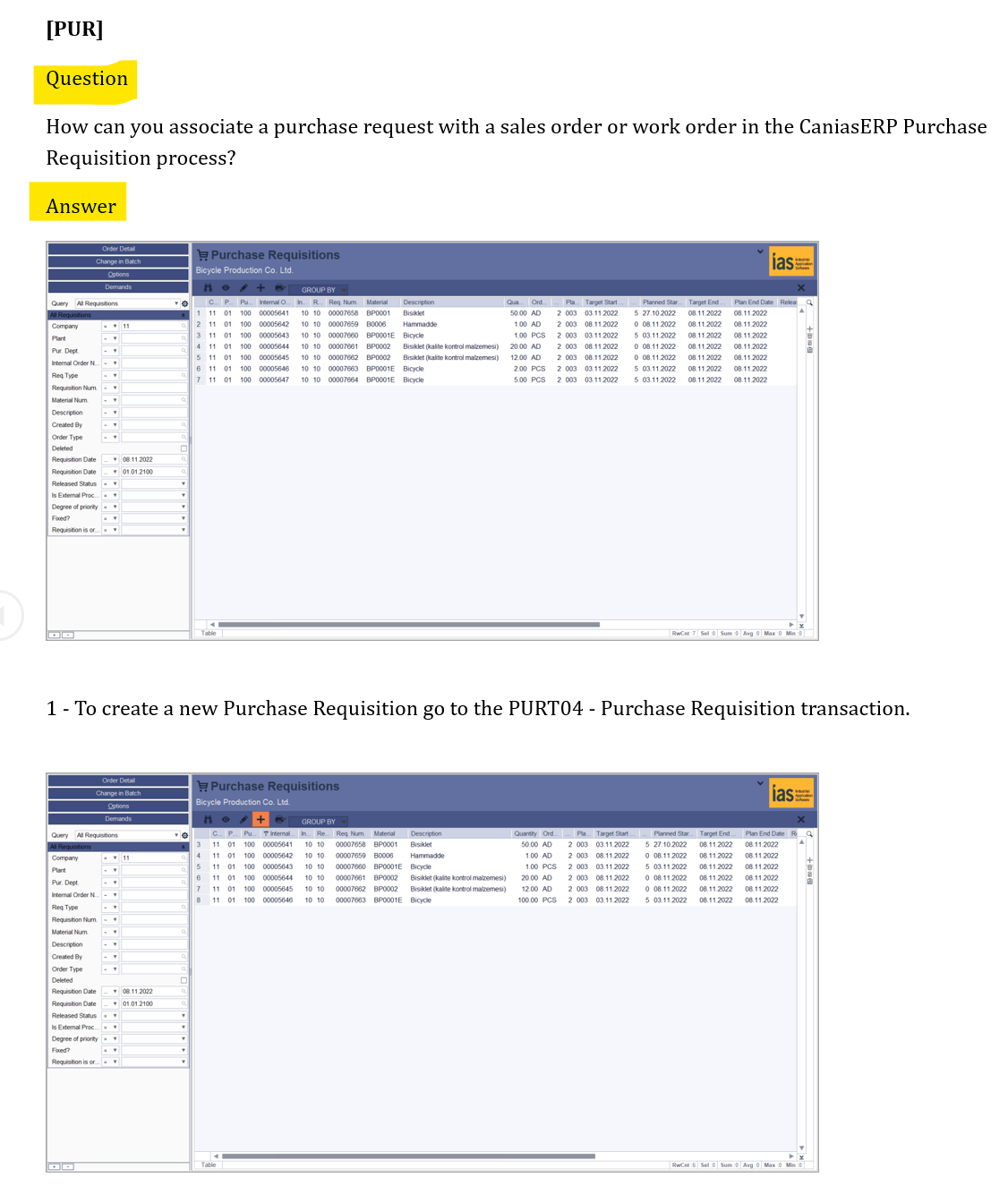
Use the provided Word sample format.
When uploading a Word file with images, images are stored along with text.
Like Excel, structure the document as Q/A pairs. If the document can clearly separate Question/Answer (e.g., using labels), it can be bulk‑uploaded.
After upload, you can edit entries in Q&A Management.